A Google review QR code is a scannable code that opens your Google Business Profile review form on a customer's phone. You can create one for free, with no signup, using the Google review QR code generator on QRGen. This guide walks through the review short link, generating the code, print size, and where restaurants and shops should put it.
Why Google Reviews Matter More Than You Think
Reviews help prospective customers judge a business before visiting. A QR code makes the review form easier to reach: customers scan the sign instead of searching for your listing. QRGen's free Google review QR code generator turns your review link into a print-ready code and poster.
If you already have your review link, open the Google Review QR Code Generator and create a print-ready sign for your counter, receipt, or table card. You can also start from the QRGen homepage if you want the full editor.
Google lets business owners share a review link or download a QR code directly from Business Profile. Use that built-in option if all you need is a basic code. QRGen is useful when you want an SVG or PDF file, custom colors, or a printable counter poster. Neither option guarantees more reviews; the sign simply removes a step for customers who choose to leave honest feedback.
How to get your Google Business Profile review link
Start with the link Google supplies for your listing. The steps below follow Google Business Profile's instructions for sharing a review link or QR code.
- Open the right Business Profile. Sign in with the account that manages the listing and select the correct location.
- Open the review sharing options. Select Read Reviews, then Get more reviews.
- Copy the link. Google also offers a downloadable QR code on a computer browser. Copy the link if you want to make a custom code or poster in QRGen.
- Test the destination. Open the copied link in a private window and confirm it shows the correct business before printing anything.
If you cannot access the Business Profile controls, ask the owner to share the review link. A Google Maps place link can also be used in QRGen, but test it carefully because it may open the listing before the customer can choose to write a review.
Generate your Google review QR code
With your review link ready, open our Google Review QR code generator. On that page, paste the link, optionally add your business name for the poster, and download your QR code. No signup.
- Open the Google Review QR Code Generator.
- Paste your Google review link into the URL field. The generator accepts Business Profile
g.pagelinks, directwritereviewlinks, and Google Maps place links. - Add your business name if you want it printed on the "Scan to review us on Google" poster.
- Customize the appearance. A warm, inviting color scheme works well for review requests. Consider using your brand colors, but keep a dark code on a light background so phones can read it. You can also use the QRGen editor and select URL as the QR code type if you want the full design studio.
- Download SVG or PDF for print, PNG for screens, or the poster PDF for a ready-made sign.
- Test the code by scanning it with your phone. It should open directly to the Google review form with the star rating selector visible.
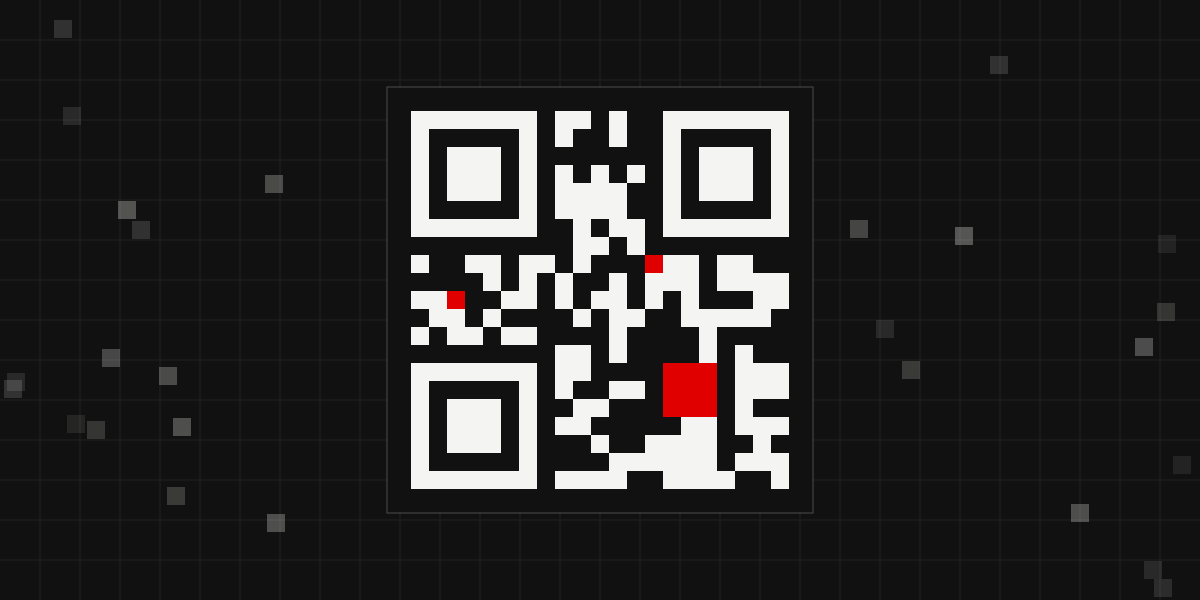
Customers can scan the code and choose whether to share an honest review of their experience.
Print size and scan quality
A review QR code that looks sharp on a laptop can still fail on a table tent if it is too small, too close to the edge, or saved as a stretched JPEG. Print it at a usable size, protect the quiet zone, and export a vector file for anything larger than a sticker.
Print the code at least 2 × 2 cm (about 0.8 inches) for close-range scans on receipts, table tents, and counter cards. Go larger for windows and walls: roughly 1 cm of code per 10 cm of scanning distance.
Leave a clear margin around every edge of the pattern. Artwork, logos, or a colored box that touches the modules is the most common reason a printed review code will not scan.
Download SVG or PDF from the generator. Both stay sharp at any size. Use PNG for email and social. Avoid photographing a screen or scaling a tiny raster file up for a poster.
Keep strong contrast: a dark foreground on a light, plain background. Skip low-contrast brand palettes, gradients behind the code, and glossy laminate that reflects overhead lights. Scan the final printed piece from the distance customers will actually stand, not only from your desk.
Where to Place Your Review QR Code
Place the QR code where customers can notice and scan it after using your service. Invite all customers to share genuine feedback, including those who may have had a mixed experience.
At the point of sale. For retail stores, salons, and service businesses, a counter sign can make the review link easy to find. Use a neutral request such as "Tell us about your visit on Google" and keep the code clear of other payment signs.
On receipts and invoices. Printing a QR code on your receipt is remarkably effective because the customer physically holds it. Even if they don't scan immediately, the receipt sits in their pocket or bag as a reminder. For service businesses that email invoices, include the QR code as an image in the email along with a direct link.
On product packaging and bags. If you sell physical products, printing a review QR code on the packaging, a hang tag, or even on the bag itself extends your reach beyond the store. The customer encounters the code again when they unbox at home, a moment when they're excited about their new purchase.
Table cards and counter stands. For restaurants and cafes, a card near the exit or register is easy to see when the visit is complete. Keep the review QR separate from menu and payment codes.
Follow-up materials. Business cards, thank-you cards, and appointment reminder cards can all include a review QR code. A handwritten thank-you note with a QR code at the bottom feels personal and generates surprisingly high scan rates. You can also add a WhatsApp QR code alongside it so customers have a direct line to reach you with feedback.
Vehicle and storefront signage. Service businesses like plumbers, electricians, and contractors can put review QR codes on their vehicle wraps and yard signs. After completing a job, the sign in the yard serves as a reminder for the customer to leave a review.
Google review QR codes for restaurants and retail
Restaurants, cafes, and shops get the most from a review code when it sits next to the other codes customers already expect to scan. Pair the review QR with a restaurant menu QR code on the same table stand, but keep the two visually distinct so nobody opens the menu when they meant to leave a review. At the till, a UPI payment QR code handles checkout while the review code catches the pause after payment.
Retail counters work the same way: one code for pay, one code for reviews, both large enough to scan without picking the card up. If you run several branches, create and test a separate review QR for each Business Profile listing so customers reach the right location. The bulk generator can turn a CSV of location links into individual QR files.
The Psychology of Asking for Reviews
Simply placing a QR code isn't enough. The language and framing around it significantly impact how many people actually scan and review.
Be clear in your ask. "Tell us about your experience today on Google" explains the destination and leaves the rating up to the customer. Keep the request the same for everyone.
Don't ask for five stars. Explicitly asking for a specific rating feels manipulative and can actually violate Google's review policies. Instead, focus on asking for honest feedback. Customers who had a good experience will naturally rate you well, and the occasional constructive criticism is valuable for improving your business.
Invite useful detail. If you add a prompt, ask a neutral question such as "What should other customers know about your visit?" Avoid suggesting a star rating or steering only happy customers to Google.
Let staff mention it. A simple "You can share feedback through the QR code on the counter" helps customers find the link without pressure. Do not ask staff to screen customers by sentiment before offering it.
How to tell whether your review QR helps
Record the number of new Google reviews in the month before you display the QR code. Then keep the sign in the same place for several weeks and compare the next month. Note other changes, such as asking customers in person or sending follow-up emails, so you do not credit the sign for every new review. QRGen creates a static code and does not track scans or review submissions.
Common Pitfalls to Avoid
Don't incentivize reviews. Offering discounts or freebies in exchange for reviews violates Google's policies and can result in your reviews being removed or your listing penalized. You can encourage reviews but never offer a reward for them.
Don't gate reviews. Some businesses set up systems that ask customers to rate their experience privately first, then only direct happy customers to Google while routing unhappy customers to a feedback form. Google explicitly prohibits this practice, known as review gating.
Respond to every review. This isn't a pitfall per se, but not responding is a missed opportunity. When potential customers see that a business owner responds to reviews, both positive and negative, it builds trust and shows you care. It also encourages more people to leave reviews because they know someone is reading them.
Don't stop after the initial push. Many businesses set up review QR codes with enthusiasm, see results, then get complacent. The businesses that benefit most are the ones that make review collection a permanent part of their operations, not a one-time campaign.
Google review QR code FAQs
How do I get a QR code for Google Reviews?
In Google Business Profile, select Read Reviews, then Get more reviews, and copy the link. Paste it into QRGen's free Google review QR code generator and download PNG, SVG, or PDF. No signup is required.
How do I create a QR code for a Google review?
Paste your Google review link or Google Maps place link into the generator. QRGen validates the destination and builds a static URL QR code that opens the review form when scanned.
Does a Google review QR code cost money?
No. QRGen generates Google review QR codes for free, with no signup, no watermark, and no per-scan fee. PNG, SVG, PDF, and the printable poster are included.
Can I use one QR code for multiple locations?
No. Each Google Business Profile location has its own review link. Make and test a separate QR code for each location so customers land on the correct listing.
Will the QR code stop working if I move locations?
Usually no, if you update the address on the same Google Business Profile. The review link is tied to the listing, not the street. If you create a new listing instead, generate and reprint a new QR code.
Getting Started Today
Copy your Business Profile review link, create a QR code, and test the printed sign with a phone before displaying it. If you run a cafe or restaurant, you may also need a WiFi QR code or menu QR code. Keep those separate from the review request. For shops accepting digital payments, use a distinct UPI QR code at the counter. You can make each code from the QRGen homepage.
Create your Google Review QR code
Paste your Google review link and generate a custom QR code in seconds. Completely free, no signup.
Open Google Review QR Code Generator